
No products in the cart.
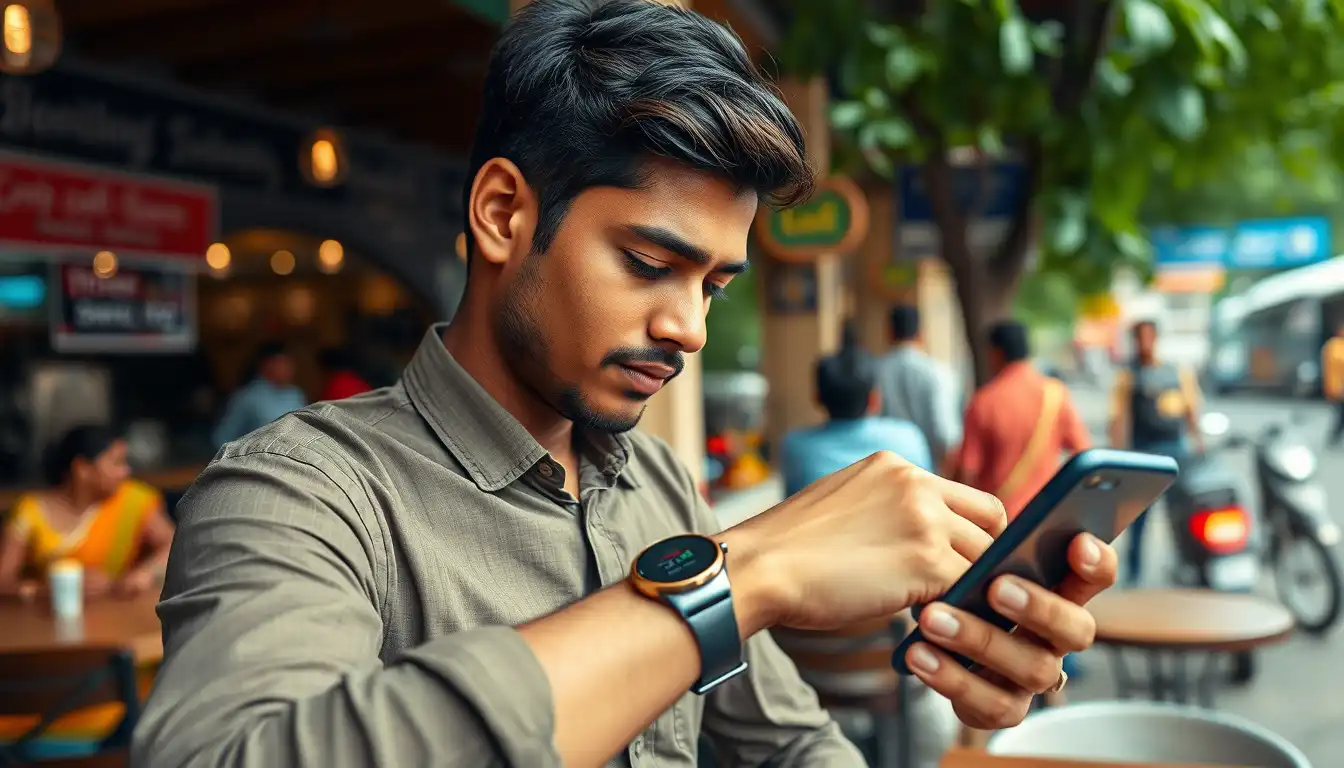
Smartwatch Not Getting Alerts? A Quick Fix Guide for Notifications
Introduction
Is your smartwatch missing notifications? Are alerts not showing up even when it’s connected? Many people in India face this problem every day. Issues like Bluetooth trouble, Do Not Disturb mode, or app problems can stop notifications. This guide shows easy steps to fix your smartwatch notifications and make alerts work every time.
Why Notifications Stop
A smartwatch not getting alerts often has simple causes. Most issues come from connection, settings, or app problems. Here’s what to check:
- Connection trouble: Bluetooth may turn off, stopping alerts.
- Settings problems: Do Not Disturb, Silent Mode, or Theater Mode can block notifications.
- App issues: The smartwatch app may need permission to send alerts.
- Phone cleanup: Some phones close apps, which stops notifications.
- Old software: Old watch or phone software can break alerts.
Fix Connection Problems
Many notification issues come from weak Bluetooth. Try these steps to fix alerts:
- Turn on Bluetooth on your phone and watch.
- Open the smartwatch app. Keep it running.
- If the watch says “Disconnected,” tap reconnect in the app.
- Turn Bluetooth off, then on again.
- Unpair and pair your watch if it still doesn’t work.
Still stuck? Check our guide on smartwatch connection problems.
Check Settings
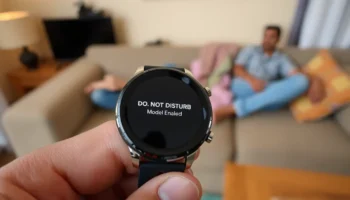
Wrong settings can stop notifications, even if connected. Look at these common issues:
- Do Not Disturb: Turn it off in your watch’s quick settings.
- Theater or Cinema Mode: This mutes alerts. Make sure it’s off.
- Silent Mode: Switch to normal mode for alerts.
- Phone alerts: Go to phone settings. Allow notifications for each app.
Fixing these often makes alerts work again fast.
Fix the Smartwatch App
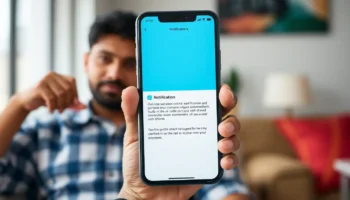
Your watch needs its app to send alerts. If the app has issues, notifications won’t work. Try these steps:
- Go to phone settings → Apps → Smartwatch app.
- Allow all notifications and background use.
- Turn off battery saving for the app.
- Let the app start when your phone turns on.
- Update the app from the Play Store.
Need more help? Visit Wear OS Help or Samsung India Support.
Other Quick Fixes
If alerts still don’t work, try these:
- Restart: Turn off your phone and watch, then turn them back on.
- Update software: Keep your watch and phone updated to fix issues.
- Factory reset: Only do this if nothing else works. Save your data first.
For better watch performance, see our battery saving guide.
Prevent Future Problems
To stop notification issues from coming back:
- Keep your watch and app updated.
- Turn off strict battery saving on your phone.
- Check Do Not Disturb and Silent Mode weekly.
- Pair your watch correctly using this pairing guide.
- Pick reliable watches like Flexnova Android SIM Watches.
FAQs
Why is my smartwatch not getting notifications?
Bluetooth trouble, wrong settings, or app issues can stop alerts. Restart both devices to fix it fast.
How do I fix notifications if Bluetooth keeps dropping?
Turn Bluetooth off and on. Keep the watch near your phone. Re-pair if needed.
Can Do Not Disturb block notifications?
Yes. If Do Not Disturb or Theater Mode is on, alerts won’t show until you turn them off.
Should I reset my watch to fix notifications?
Only reset if other fixes don’t work. It deletes data, so try other steps first.
How do I stop notification problems?
Update apps, allow background use, and check settings often. This keeps alerts working.
Conclusion
A smartwatch missing notifications is annoying but easy to fix. Check Bluetooth, app settings, and software updates. These steps will fix notifications and prevent future issues.
Did these fixes help? Share your story in the comments. For more smartwatch tips, visit the Flexnova homepage.
Related posts
Introduction : Lost Your Smartwatch? A Simple Guide to Finding It in India Losing your smartwatch can be stressful. But don’t worry — there are...
Introduction: Why Smartwatch Software Updates Matter Your smartwatch is more than a gadget—it’s your health tracker, productivity partner, and digital assistant. To keep it reliable,...
Introduction Just bought your first smartwatch and wondering how to get it working with your Android phone? You’re not alone. Many first-time smartwatch users in...
Introduction: Simple Settings to Extend Smartwatch Battery Life Does your watch run out before the day ends? With the right smartwatch battery saving settings, you...

Introduction: Smartwatch Gets Wet? Here’s What to Do If your smartwatch gets wet, don’t panic. Smartwatch water damage is common, and there are safe ways...
Add comment
You must be logged in to post a comment.