
No products in the cart.
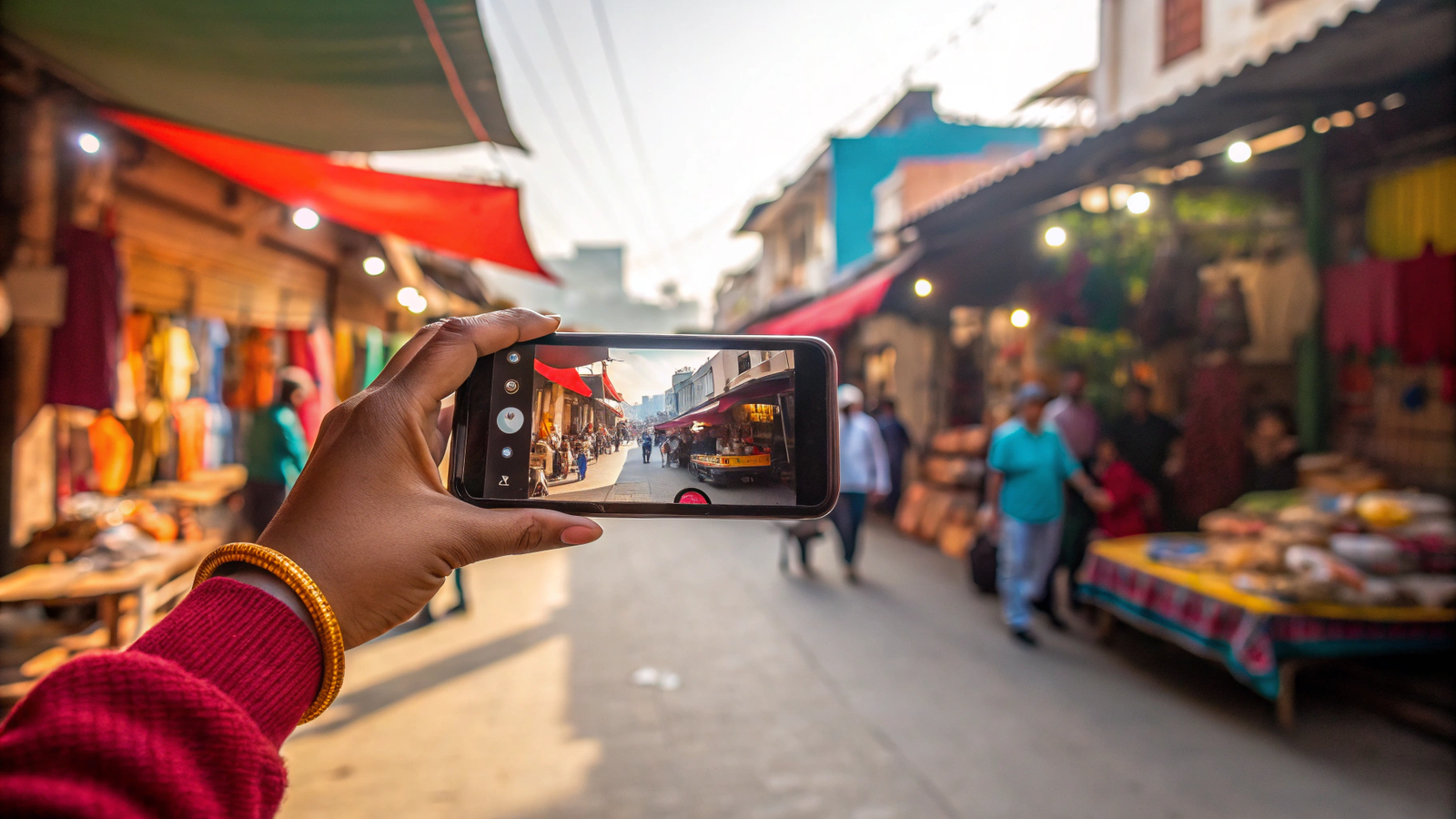
Shoot Better: The Best Camera Settings on Your Mini Smartphone
Introduction : Unlock Your Mini Phone’s Hidden Camera Power
Do you want to move beyond basic snapshots and discover the best camera settings on your mini smartphone? This comprehensive camera settings guide is designed to help you do just that. We will demystify the powerful Pro Mode on a small phone and break down the core principles of the exposure triangle in simple terms. Furthermore, you’ll learn essential smartphone photography tips for beginners that will instantly improve your shots. Whether you’re exploring manual camera mode for the first time or just want to understand how to take better photos on a small phone, this guide provides all the knowledge you need.
Start Simple: Master the Auto Mode First
Before diving into advanced settings, get comfortable with your phone’s automatic “Photo” mode. Modern phones are incredibly smart. They can often choose the best camera settings for you. Practice composition and holding your phone steady. Once you’re confident, you’re ready for the next level. For more foundational tips, see our guide on why small is the new smart.
Understanding Pro Mode: The Exposure Triangle

Pro Mode gives you manual control. Think of it as three main controls that work together: the Exposure Triangle.
1. ISO: Controlling Light Sensitivity
ISO determines how sensitive your camera’s sensor is to light. A low ISO (like 100) is for bright, sunny days. A high ISO (like 1600) is for dark scenes. However, high ISO can create grain or “noise.” The key is to keep your ISO as low as possible for the clearest photo.
2. Shutter Speed: Freezing or Blurring Motion
Shutter Speed controls how long the camera’s “eye” stays open. A fast speed (like 1/1000s) freezes action, perfect for sports. A slow speed (like 1/15s) creates motion blur, ideal for light trails at night. Remember, slow speeds require a very steady hand or a tripod to avoid a blurry whole picture.
3. Aperture: The Depth of Field Controller
Aperture (or f-stop) controls how much light enters the lens. On most mini phones, this is fixed. But understanding it is useful. A lower f-number (e.g., f/1.8) creates a blurred background (bokeh), making your subject stand out. A higher f-number (e.g., f/16) keeps more of the scene in focus.
Other Essential Camera Settings to Know
Beyond the triangle, these settings will refine your photos.
White Balance: Getting the Colors Right
This setting adjusts the color temperature. “Auto” usually works well, but you can manually set it to “Sunny,” “Cloudy,” or “Tungsten” to make colors look more natural under different lights.
Use the Grid Lines for Better Composition
Turn on the grid lines in your camera settings. This overlays a 3×3 grid on your screen. Try placing your main subject where the lines intersect. This “Rule of Thirds” creates a more balanced and interesting photo.
Understand HDR for Balanced Lighting
HDR (High Dynamic Range) is great for high-contrast scenes, like a landscape with a bright sky. It takes multiple photos at different exposures and blends them, saving details in both the shadows and highlights. Leave it on “Auto.”
RAW vs. JPEG: Quality vs. Convenience
Shooting in RAW gives you the highest quality file and more editing flexibility later. However, the files are very large. JPEG files are smaller and ready to share. For beginners, JPEG is perfect. As you advance, try RAW. For more on editing, resources like Adobe’s guide to smartphone photography are excellent.
Pro Tips for Mini Phone Photography
Your small phone has unique advantages. Use these tips to get the most from it.
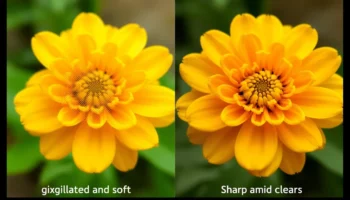
- Zoom With Your Feet: Digital zoom reduces quality. Instead, physically move closer to your subject.
- Keep Your Lens Clean: A mini phone spends time in pockets and bags. Wipe the camera lens with a soft cloth before you shoot.
- Hold It Steady: Use both hands and lean against a wall for stability, especially in low light.
- Experiment and Practice: The best way to learn is by doing. Try different settings and see what happens.
For a deeper dive into technical settings, Capture the Atlas offers detailed explanations.
Your Quick Settings Checklist
Before you shoot, run through this list:
- Clean the camera lens.
- Turn on the Grid Lines.
- Set HDR to Auto.
- In Pro Mode, start with a low ISO and adjust Shutter Speed for brightness.
- Focus on your subject by tapping the screen.
If you need help finding these settings in your phone’s menu, our guide on installing apps from the Play Store can help you find photography tools.
Ready to Capture Your World in a New Light?
Your mini smartphone is a powerful camera waiting to be unleashed. By understanding these best camera settings on your mini smartphone, you can take creative control and capture photos you’ll be proud of.
Ready to start shooting like a pro? Try these camera settings on your next photo and share the results with us! For more tips on mastering your device and embracing a minimalist life with a mini smartphone, explore our Flexnova Homepage.
FAQs on Phone Camera Settings
What is the best setting for portrait photos?
Use “Portrait” mode if your phone has it. It artificially blurs the background. In Pro Mode, use the widest aperture your phone allows (lowest f-number) and ensure your subject is well-lit.
Why are my night photos so blurry?
This is usually due to a slow shutter speed and camera shake. Increase the ISO slightly and use a tripod or rest your phone on a steady surface to keep it completely still.
Should I always use Pro Mode?
No. For quick, everyday shots, Auto mode is faster and often just as good. Use Pro Mode when you have time to compose a shot and want specific creative control over motion and light.
What does AE/AF Lock do?
When you tap and hold on your screen, it locks the Auto Exposure (AE) and Auto Focus (AF). This is useful for tricky lighting or when you want to focus on one thing and recompose your shot.
How can I make my photos look more professional?
Focus on composition first. Use the rule of thirds, look for clean backgrounds, and ensure your subject is well-lit. Mastering these basics will make a bigger difference than any single setting.


Related posts
Introduction : Transform Your Mini Phone into a Tool for Focus Is your phone’s screen a chaotic mess of icons and notifications? You can change...

Introduction : Share Your Internet Anywhere with Your Mini Phone Need to get your laptop online or share data with a friend? Your mini phone...
Unlocking High-Speed Connectivity on a Compact Device Are you curious about using 4G on a mini phone and how it impacts your daily experience?...
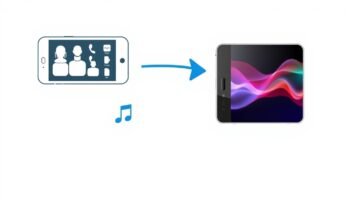
Introduction Just got a new mini smartphone? Learning how to transfer contacts and data is the first step to making it feel like your own....

Introduction: Why Typing on a Mini Smartphone Feels Tricky If you’ve just picked up a mini smartphone, you may quickly realize that mastering the small...
Add comment
You must be logged in to post a comment.