
No products in the cart.
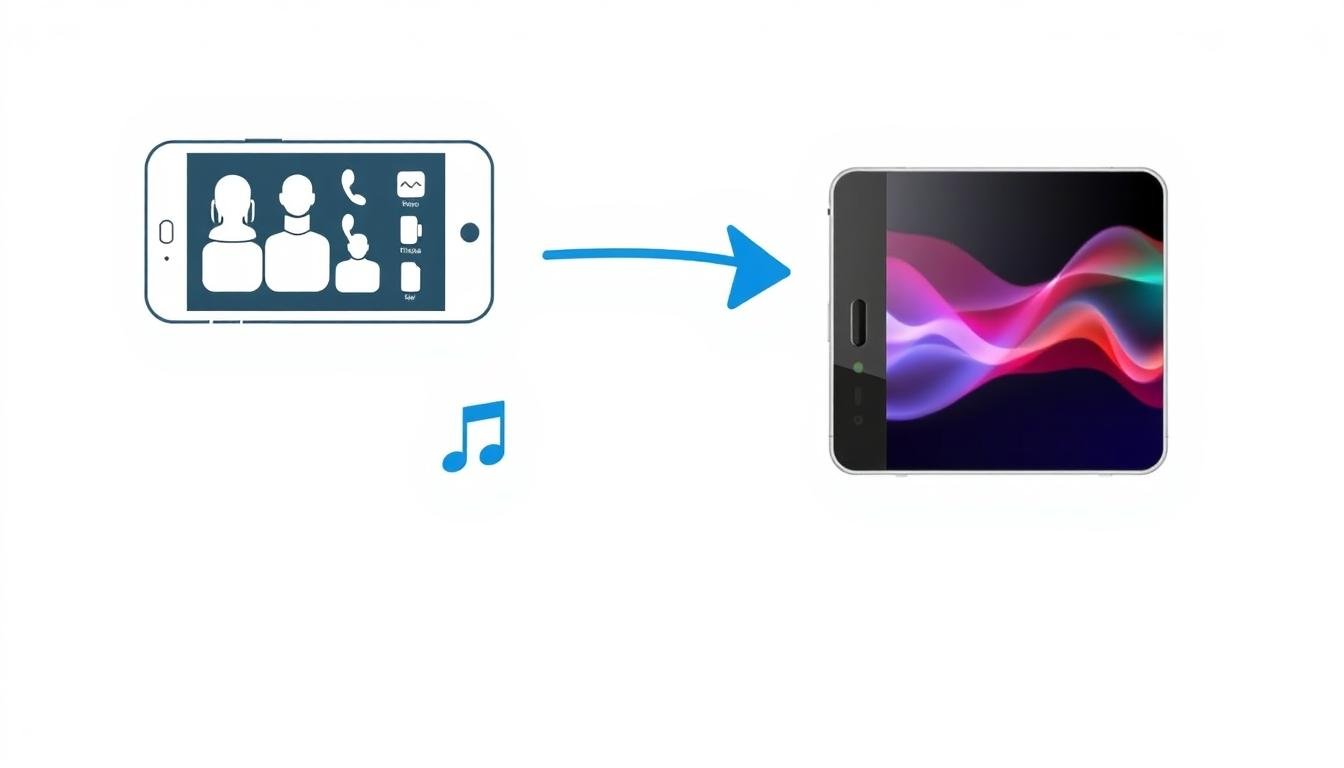
Seamless Switch: A Guide to Transferring Data to Your Mini Smartphone
Introduction
Just got a new mini smartphone? Learning how to transfer contacts and data is the first step to making it feel like your own. This comprehensive guide will walk you through the entire process of data transfer to a new phone, ensuring nothing gets left behind. We cover everything from the simplest Google account sync method to using popular data transfer apps. Whether you’re performing a phone to phone data transfer , SIM card contacts transfer or need a guide for migrating from a feature phone, our step-by-step instructions make the switch seamless and stress-free.
Before You Start: Your Pre-Transfer Checklist
A little preparation makes the process smooth. Follow this simple list.
- Charge Both Phones: Ensure your old and new phones have at least 50% battery.
- Connect to Wi-Fi: A stable Wi-Fi connection is crucial for wireless transfers.
- Update Your Old Phone: Check for software updates on your old device for better compatibility.
- Know Your Google Account: Have your email and password ready.
Method 1: Using Your Google Account (The Easiest Way)
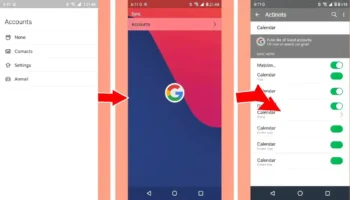
This is the best method for syncing your core information automatically.
On Your Old Phone:
- Go to Settings > Accounts.
- Tap your Google account.
- Ensure Contacts, Calendar, and Photos are set to sync.
On Your New Mini Smartphone:
- When setting up the phone, sign in with the same Google account.
- Your contacts and other synced data will automatically appear within minutes.
According to the official Google Help page, this is the recommended way to keep your data backed up and synced across devices.
Method 2: Wireless Transfer with an App
This is perfect for moving photos, videos, and messages all at once.
Using Samsung Smart Switch (Works for Most Androids)
- Download Samsung Smart Switch on both phones.
- Open the app on both devices.
- On the new phone, tap Receive data > Wireless.
- On the old phone, tap Send data > Wireless.
- Select the data you want to transfer and tap Transfer.
You can learn more on the Samsung Smart Switch official page.
Method 3: For Basic Contact Transfer (From Any Phone)
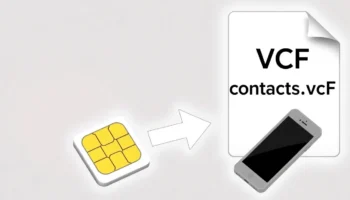
If you only need to move contacts, these methods are very effective.
Using a VCF File (Virtual Contact File)
- On your old phone, open the Contacts app.
- Go to Settings > Export or Share contacts.
- Choose to save the .vcf file to your internal storage.
- Send this file to your new phone via Bluetooth, email, or WhatsApp.
- On the new phone, open the file and import the contacts.
Using a SIM Card
- On your old phone, go to Contacts > Settings > Import/Export.
- Select Export to SIM card.
- Move the SIM card to your new phone.
- On the new phone, go to Contacts > Settings > Import from SIM card.
Note: SIM cards have limited storage, so this method is best for a small number of contacts.
What to Do After the Transfer
Congratulations! Your data is now on your new phone. Here are the next steps.
- Check Everything: Open your contacts, gallery, and messages to ensure all data is there.
- Log Into Apps: Sign in to your social media and banking apps.
- Set Up a Secure Lock: Protect your new device with a PIN, pattern, or fingerprint.
For more setup tips, see our guide on setting up your mini smartphone.
Ready to Enjoy Your New Phone?
Transferring your digital life to a new device doesn’t have to be complicated. By following this guide on how to transfer contacts and data, you can ensure a smooth and complete switch to your new mini smartphone.
Ready to make the switch? Use this guide to transfer your data and start enjoying your new mini smartphone today! Explore our range of easy-to-setup devices on the Flexnova Homepage.
FAQs on Data Transfer
What is the fastest way to transfer data?
For a full transfer, using a dedicated app like Samsung Smart Switch over a Wi-Fi connection is usually the fastest and most comprehensive method.
Can I transfer data from a broken phone?
It can be difficult. If the screen works enough to navigate, you might be able to use a wireless transfer. If not, your best bet is if you had previously synced your data with your Google account.
Do I need the same brand of phone to transfer data?
No. Apps like Samsung Smart Switch and Google’s built-in tools are designed to work between different Android brands. The process for transferring data from an old Android is largely universal.
How do I transfer my WhatsApp chats?
In WhatsApp, go to Settings > Chats > Chat backup to create a backup on Google Drive. Then, install WhatsApp on your new phone and log in with the same number to restore.
What if my transfer gets interrupted?
Don’t worry. For most methods, you can simply start the process again. The apps are designed to handle interruptions and will typically resume or restart the transfer.

Related posts
Introduction : Transform Your Mini Phone into a Tool for Focus Is your phone’s screen a chaotic mess of icons and notifications? You can change...
Introduction : Share Your Internet Anywhere with Your Mini Phone Need to get your laptop online or share data with a friend? Your mini phone...
Introduction : Unlock Your Mini Phone’s Hidden Camera Power Do you want to move beyond basic snapshots and discover the best camera settings on your...
Unlocking High-Speed Connectivity on a Compact Device Are you curious about using 4G on a mini phone and how it impacts your daily experience?...
Introduction: Why Typing on a Mini Smartphone Feels Tricky If you’ve just picked up a mini smartphone, you may quickly realize that mastering the small...
Add comment
You must be logged in to post a comment.