
No products in the cart.
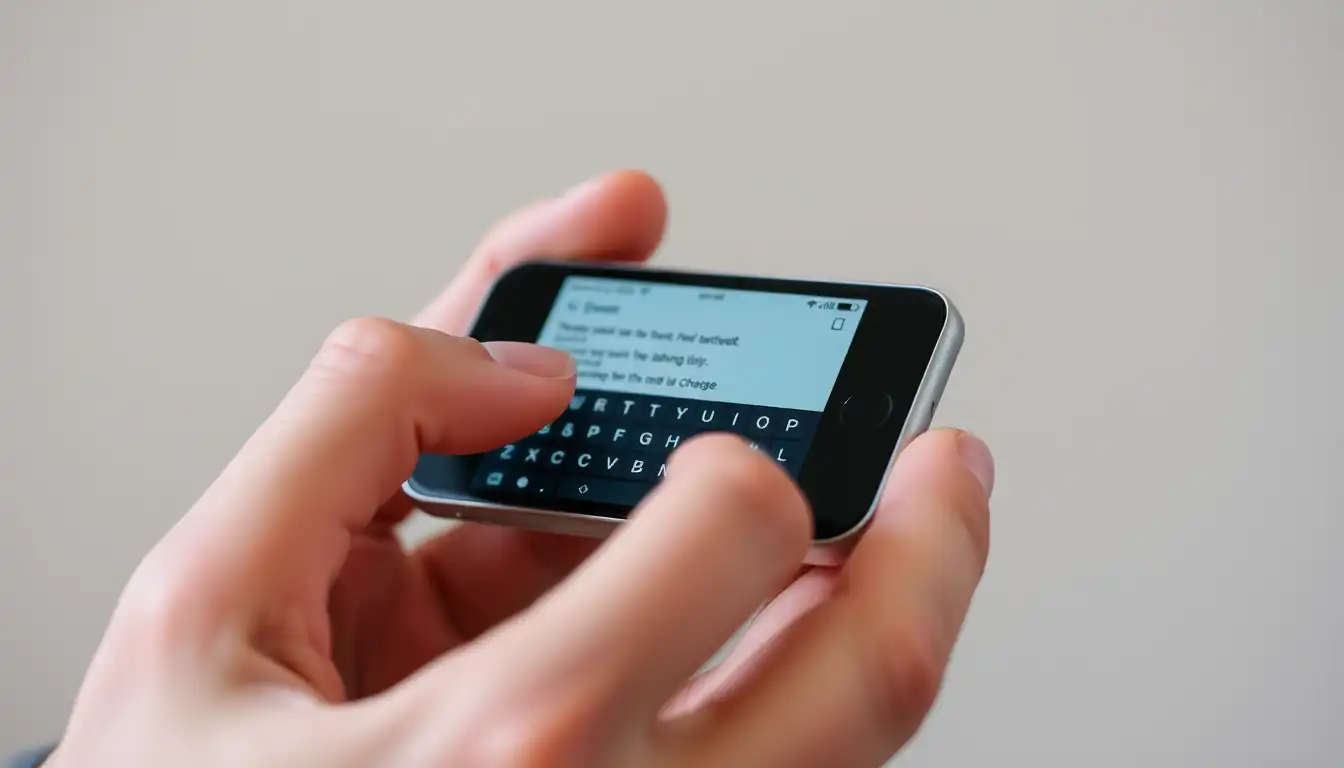
Mastering the Small Screen: Tips and Tricks for Easy Typing
Introduction: Why Typing on a Mini Smartphone Feels Tricky
If you’ve just picked up a mini smartphone, you may quickly realize that mastering the small screen comes with challenges. From frequent typos to slow typing speed, many people struggle with small screen typing. But don’t worry — with the right tricks, you can type faster and more comfortably. Whether you prefer using talk to text for hands-free input, enabling one-handed typing for better reach, or trying the best keyboard apps for mini phones, this guide will help you type like a pro. Let’s explore easy tips and tools that make communication effortless, even on the tiniest of screens.
Choosing the Right Keyboard for Your Mini Phone
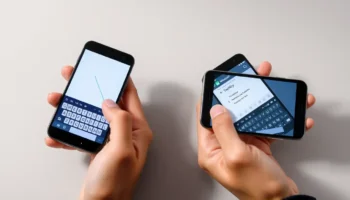
The first step to typing faster is selecting the right keyboard app. While default keyboards are functional, switching to advanced apps can enhance your typing experience on a small device.
- Gboard (Google Keyboard): Comes pre-installed on most Android phones. Offers swipe typing, emoji search, multilingual input, and voice typing.
- Microsoft SwiftKey: Famous for predictive text and AI-powered suggestions. Ideal for frequent texters.
- Typewise: Built for small screens with larger hexagonal keys that reduce typos.
- Simple Keyboard: A lightweight and minimalist option for distraction-free typing.
Pro Tip: Experiment with two or three apps before settling on the one that feels most comfortable on your mini smartphone.
Swipe Typing: Faster Than Tapping
Instead of tapping individual letters, swipe typing allows you to glide your finger from one letter to the next. This reduces errors and speeds up text entry on smaller keyboards.
- Go to Settings > System > Languages & Input.
- Select Gboard > Glide Typing.
- Enable Glide Typing.
Now, you can type entire words with just one smooth swipe.
Voice Typing: Hands-Free and Convenient

When the keys feel too small, voice input is the easiest option. With Google Voice Typing, you can dictate instead of tapping.
- Open any app with a text field.
- Tap the microphone icon on the keyboard.
- Speak clearly into your phone.
- Use commands like “comma,” “question mark,” or “new line” for formatting.
This is especially handy for long messages or when multitasking.
Adjusting Keyboard Settings for Comfort
Android keyboards allow customization to improve comfort on small screens:
- Change Keyboard Height: Make the keys larger and easier to press.
- Enable One-Handed Mode: Shrink the keyboard to one side for thumb typing.
- Create Text Shortcuts: Type short codes like “addr” to expand into your full address.
Accessibility Features for Better Typing
For elderly users or anyone who needs larger visuals, Android accessibility tools are very helpful:
- Increase Font & Display Size: Adjust from Settings > Display.
- Enable High Contrast Keyboard: Improves key visibility.
- Magnification Gestures: Zoom into any part of the screen with three taps.
Typing Techniques: Build Your Speed

Along with the right tools, your typing style matters:
- Use both thumbs for quicker typing.
- Keep the phone steady on a surface.
- Practice swipe typing for efficiency.
- Take breaks to avoid hand strain.
Troubleshooting Typing Issues on Small Screens
Common typing problems and quick fixes:
- Keys too small? Switch to Typewise or increase keyboard height.
- Frequent typos? Turn on autocorrect and predictive text.
- Typing lag? Clear cache and close background apps.
- Accidental touches? Enable touch sensitivity settings.
Recommended Apps for Easier Typing
These apps make small screen communication smoother:
- Google Keep: Quick note-taking with voice-to-text.
- Grammarly Keyboard: Grammar and spelling corrections in real-time.
- WhatsApp Voice Notes: Send voice messages instead of typing long texts.
Safety and Privacy While Typing
Typing faster is great, but security matters too:
- Only download keyboards from the Google Play Store.
- Review app permissions regularly.
- Disable personalization if you don’t want your keyboard to learn from private messages.
Internal Resources from Flexnova
- Smart Choice: The Best Mini Smartphone for Students in India
- The Best Mini Smartphone for Elderly Users: Simple and Easy
- Flexnova Mini Smartphone Collection
FAQs About Typing on a Mini Smartphone
What is the best keyboard app for a mini smartphone?
Gboard is the most popular choice, SwiftKey offers great predictive text, and Typewise is built for small screens.
How can I type faster without making mistakes?
Enable swipe typing, turn on predictive text, and try voice typing for longer texts.
Is voice typing safe to use?
Yes, Google Voice Typing is secure, but always review app permissions before enabling.
Can I increase the keyboard size on a mini phone?
Yes, most keyboard apps allow you to adjust the height and enable one-handed mode.
What’s the best typing method for elderly users?
Increase font size, enable high-contrast mode, and try talk-to-text for easier typing.
Conclusion + Call to Action
Typing on a mini smartphone doesn’t have to be frustrating. With the right keyboard apps, swipe typing, and voice input, you can type comfortably even on the smallest screens. Ready to type with speed and accuracy? Try these tips today and let us know which one worked best for you in the comments!
Related posts
Introduction : Transform Your Mini Phone into a Tool for Focus Is your phone’s screen a chaotic mess of icons and notifications? You can change...

Introduction : Share Your Internet Anywhere with Your Mini Phone Need to get your laptop online or share data with a friend? Your mini phone...

Introduction : Unlock Your Mini Phone’s Hidden Camera Power Do you want to move beyond basic snapshots and discover the best camera settings on your...

Unlocking High-Speed Connectivity on a Compact Device Are you curious about using 4G on a mini phone and how it impacts your daily experience?...
Introduction Just got a new mini smartphone? Learning how to transfer contacts and data is the first step to making it feel like your own....
Add comment
You must be logged in to post a comment.