
No products in the cart.
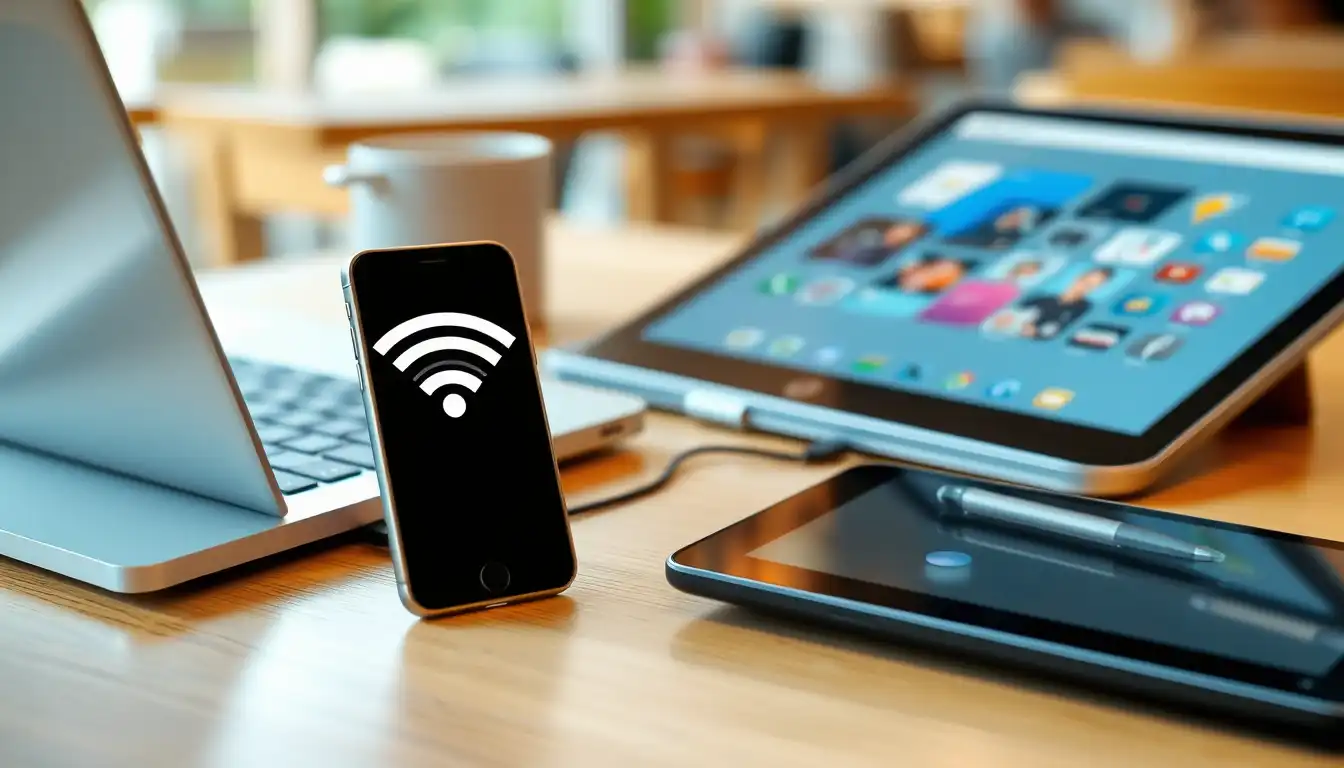
Internet on the Go: Your Guide to Using Your Mini Phone’s Hotspot
Introduction : Share Your Internet Anywhere with Your Mini Phone
Need to get your laptop online or share data with a friend? Your mini phone can help. This comprehensive mini phone Wi-Fi hotspot guide will show you exactly how to use your mini phone as a hotspot. We cover the entire process, from the simple steps for how to set up hotspot on Android to managing Wi-Fi hotspot battery drain tips and fix phone hotspot not working. Whether you’re a student, traveler, or professional, mastering the Wi-Fi hotspot feature on your small phone ensures you’re always connected, wherever you go.
What is a Wi-Fi Hotspot?
A Wi-Fi hotspot, also known as tethering, turns your phone into a portable internet router. It uses your mobile data connection to create a private Wi-Fi network. Other devices, like laptops and tablets, can then connect to this network and access the internet through your phone.
How to Set Up Your Hotspot in 4 Easy Steps
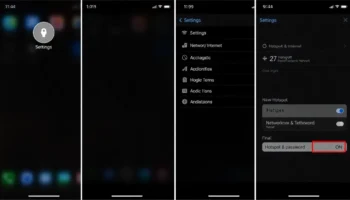
Setting up your personal hotspot is very simple. Just follow these steps.
Step 1: Find the Hotspot Settings
Open the Settings app on your phone. Then, look for “Network & internet” or “Connections.” Inside that menu, you will find an option called “Hotspot & tethering,” “Mobile Hotspot,” or “Portable Hotspot.”
Step 2: Configure Your Network
Tap on “Wi-Fi hotspot” or “Mobile Hotspot.” Here, you can set a name for your network (this is called an SSID) and create a strong password. A good password keeps your connection secure.
Step 3: Turn On the Hotspot
Toggle the switch at the top to “On.” Your phone will now start broadcasting its Wi-Fi signal.
Step 4: Connect Your Other Devices
On your laptop or other device, search for available Wi-Fi networks. Select the network name (SSID) you just created, enter the password, and you’re connected!
For official instructions, you can always refer to the Android Help page on tethering.
Smart Tips for Using Your Hotspot
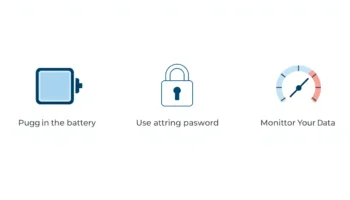
Using a hotspot well means being efficient and secure.
Save Your Phone’s Battery Life
A hotspot can use a lot of power. To manage hotspot power consumption, plug your phone into a charger while the hotspot is active. Also, remember to turn the hotspot off when you’re done using it.
Keep Your Connection Secure
Always use a strong password. Avoid using simple passwords like “12345678.” A mix of letters, numbers, and symbols is best.
Monitor Your Data Usage
Remember, all connected devices are using your mobile data plan. Keep an eye on your data usage in your phone’s settings to avoid unexpected charges, especially if you have a limited data plan.
For more on managing your mobile connection, see our guide on 4G on a mini phone.
Troubleshooting Common Hotspot Problems
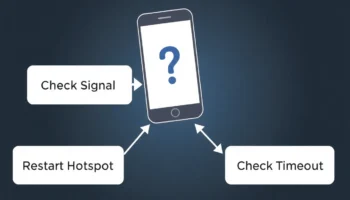
Sometimes things don’t work as planned. Here’s how to troubleshoot hotspot connection issues.
Other Devices Can’t Find the Hotspot
First, make sure the hotspot is turned on. Then, check that the device you’re trying to connect to is close to your phone. Restarting the hotspot can also help.
The Internet is Slow on Connected Devices
This could be due to a weak mobile signal on your phone. Check your 4G signal strength. Also, having too many devices connected at once can slow things down. Try disconnecting some devices.
The Hotspot Turns Off By Itself
Many phones have a built-in feature that turns off the hotspot if no devices are connected for a certain period. This is normal to save battery. If it turns off while in use, check if you have a “Timeout” or “Auto-disable” setting and adjust it.
For brand-specific issues, resources like Samsung Support can be very helpful.
Ready to Become a Connectivity Pro?
Your mini phone is a powerful tool for staying connected. By learning how to set up a hotspot on Android, you can ensure you and your devices have internet access whenever you need it.
Ready to share your internet? Try setting up your hotspot and share this guide with a friend who needs it! For more useful guides on getting the most from your device, from transferring your data to finding the best phone for your needs, explore the Flexnova Homepage.
FAQs on Phone Hotspots
How many devices can connect to my phone’s hotspot?
This limit is set by your phone and your mobile carrier. Typically, you can connect between 5 and 10 devices. Check your phone’s hotspot settings or contact your carrier for the exact number.
Does using a hotspot use a lot of data?
It can, depending on what the connected devices are doing. Streaming video or downloading large files on a laptop will use much more data than just browsing websites or checking email.
Can I use the hotspot while on a call?
Yes, if your phone and network support VoLTE (Voice over LTE). With VoLTE, you can use your 4G data for calls and the hotspot simultaneously without either service dropping.
Why is my hotspot option greyed out?
This usually means your mobile data is turned off. Go to your settings and turn on “Mobile Data” first. If that doesn’t work, restart your phone.
Is it safe to use public Wi-Fi instead of my hotspot?
Your personal hotspot is generally more secure than an unknown public Wi-Fi network because it is password-protected and encrypted. For sensitive activities like online banking, your hotspot is the safer choice.
Related posts
Introduction : Transform Your Mini Phone into a Tool for Focus Is your phone’s screen a chaotic mess of icons and notifications? You can change...
Introduction : Unlock Your Mini Phone’s Hidden Camera Power Do you want to move beyond basic snapshots and discover the best camera settings on your...
Unlocking High-Speed Connectivity on a Compact Device Are you curious about using 4G on a mini phone and how it impacts your daily experience?...
Introduction Just got a new mini smartphone? Learning how to transfer contacts and data is the first step to making it feel like your own....

Introduction: Why Typing on a Mini Smartphone Feels Tricky If you’ve just picked up a mini smartphone, you may quickly realize that mastering the small...
Add comment
You must be logged in to post a comment.