
No products in the cart.
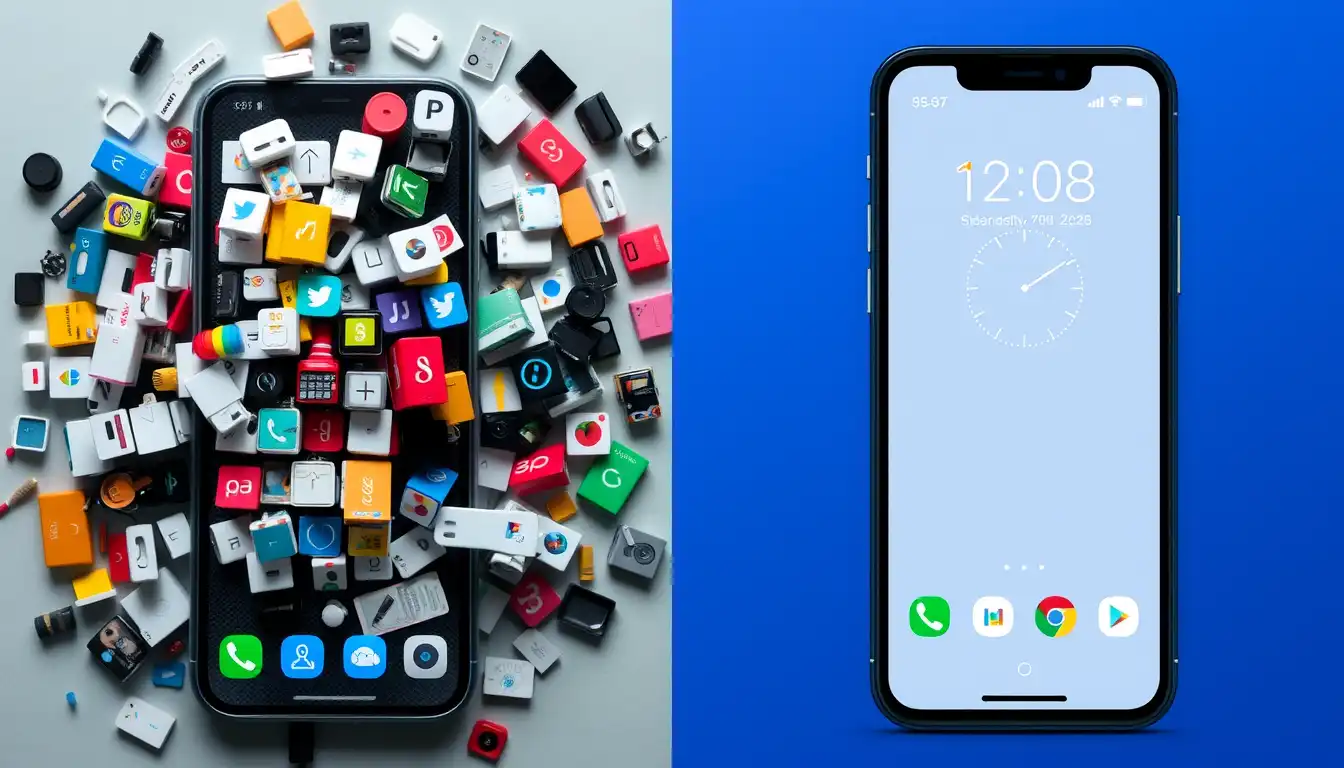
How to Customize Your Mini Phone for Simplicity
Introduction : Transform Your Mini Phone into a Tool for Focus
Is your phone’s screen a chaotic mess of icons and notifications? You can change that. Learning how to customize your mini phone interface is the first step toward a calmer digital life. This guide is dedicated to achieving mini phone interface simplicity through practical, step-by-step methods. We will explore the best minimalist launchers for Android, digital minimalism apps , how to get large fonts on mini phone and provide essential phone customization tips to declutter your screen. Our goal is to help you master the art of simple phone customization, turning your device into a streamlined tool that serves you, not distracts you.
Why a Simple Interface is a Smart Choice
A cluttered screen can be overwhelming and distracting. A simple interface helps you find apps faster, reduces the urge to mindlessly scroll, and makes your phone easier and less stressful to use. It’s a core principle of digital minimalism.
Method 1: Use a Minimalist Launcher (The Most Powerful Change)
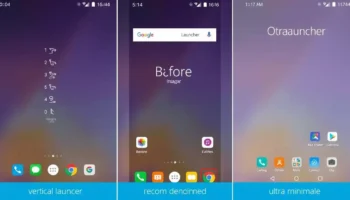
A launcher is an app that controls your phone’s home screen. Replacing the standard one with a minimalist version can transform your phone’s entire feel.
Top Launcher Picks for a Clean Look
- Niagara Launcher: This launcher shows your apps in a single, vertical list. It’s incredibly efficient and perfect for one-handed use on a mini phone.
- Before Launcher: Designed to reduce screen time, it focuses on your essential apps and hides the rest, encouraging intentional use.
- Olauncher: This is an ultra-minimalist option. It displays only the time, date, and a few app icons, removing all visual noise.
You can find more excellent options detailed in this review of the best minimalist Android launchers.
How to Install a New Launcher
- Download your chosen launcher from the Google Play Store.
- Open the launcher app. It will guide you through the setup process.
- Your phone will ask which launcher you want to use. Select your new minimalist launcher and tap “Always.”
Method 2: Declutter Your Current Home Screen
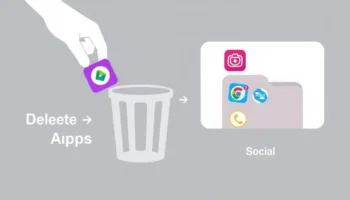
If you don’t want a new launcher, you can still simplify your existing setup.
- Delete Unused Apps: Be ruthless. If you haven’t used an app in a month, delete it. You can always reinstall it later.
- Organize with Folders: Group similar apps into folders (e.g., “Social,” “Banking,” “Travel”). This turns many icons into one.
- Turn Off Notifications: Go to Settings > Notifications and disable alerts for apps that aren’t essential. This stops constant distractions.
For a broader philosophy on this lifestyle, read our guide to the minimalist life with a mini smartphone.
Method 3: Use Accessibility Features for Clarity
Your phone’s accessibility settings aren’t just for those with impairments; they’re fantastic tools for creating a simple smartphone interface for everyone.
- Increase Font Size: Go to Settings > Display > Font Size and make the text larger and easier to read.
- Enable High Contrast: This setting improves the distinction between text and background, reducing eye strain.
- Simplify the Home Screen: Some phones have an “Easy Mode” or “Simple Mode” in the settings that instantly creates a larger, cleaner layout.
These features are especially helpful for creating a senior-friendly phone.
Method 4: The Grayscale Trick for Focus
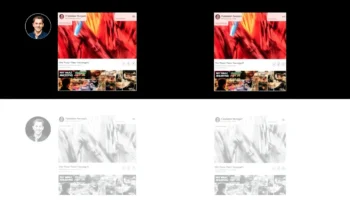
This is a simple but powerful psychological trick. By removing color, your phone becomes less visually stimulating and addictive.
To enable it: Go to Settings > Accessibility > Text and display > Color correction (or similar). Then, turn on color correction and set it to Grayscale. You’ll be amazed at how much less appealing endless scrolling becomes.
Your Simple Setup Checklist
Ready to begin? Follow this list:
- Choose and install a minimalist launcher OR declutter your current home screen.
- Delete all non-essential apps.
- Turn off unnecessary notifications.
- Increase your font size for better readability.
- Try enabling Grayscale mode for a day.
Enjoy Your New, Peaceful Phone
By taking the time to customize your mini phone interface, you’ve done more than just organize icons. You’ve created a digital environment that promotes focus and intentionality. Your phone is now a tool you control.
Ready to declutter your digital life? Try a minimalist launcher and tell us how it changed your phone experience! For more ways to reduce screen time and boost focus, explore the Flexnova Homepage.
FAQs on Simplifying Your Phone
Will a new launcher slow down my phone?
Most minimalist launchers are designed to be lightweight and can actually improve performance on devices with limited RAM, as they use fewer system resources than complex stock launchers.
Can I go back to my old home screen?
Yes, absolutely. You can change your launcher at any time. Go to Settings > Apps > Default apps > Home app, and select your previous launcher.
What is the simplest launcher available?
Launchers like Olauncher or Before Launcher are among the simplest. They strip the interface down to the bare essentials, which is a philosophy embraced by devices like The Light Phone.
How do I stop so many notification pop-ups?
Go to Settings > Notifications > App Settings. Here, you can review each app and disable “Pop on screen” or disable notifications entirely for apps that are not important.
Is a simple interface good for kids or elderly users?
Yes, it is ideal. A decluttered screen with large fonts and simple navigation is much less confusing and easier to use for people of all ages and tech skill levels.


Related posts
Introduction : Share Your Internet Anywhere with Your Mini Phone Need to get your laptop online or share data with a friend? Your mini phone...

Introduction : Unlock Your Mini Phone’s Hidden Camera Power Do you want to move beyond basic snapshots and discover the best camera settings on your...
Unlocking High-Speed Connectivity on a Compact Device Are you curious about using 4G on a mini phone and how it impacts your daily experience?...
Introduction Just got a new mini smartphone? Learning how to transfer contacts and data is the first step to making it feel like your own....
Introduction: Why Typing on a Mini Smartphone Feels Tricky If you’ve just picked up a mini smartphone, you may quickly realize that mastering the small...
Add comment
You must be logged in to post a comment.